Ladders
When creating views corresponding to components, the AssemblyBoard tool calculates the possible scale to fit the view within the boxes defined on the pages. The tool then selects the smallest scale specified in the scale file that fits within the view. This file can be customized based on the scales most commonly used for this type of work. These are not the scales offered in SOLIDWORKS drawing views.
Example of a custom scale file:
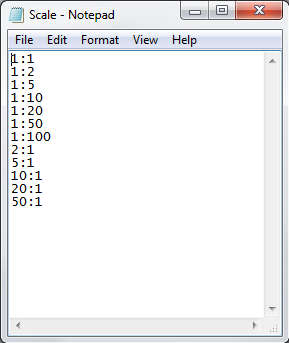
By clicking on the  A custom scale file can be used. This path can point to a network drive and is saved when this search icon is clicked again.
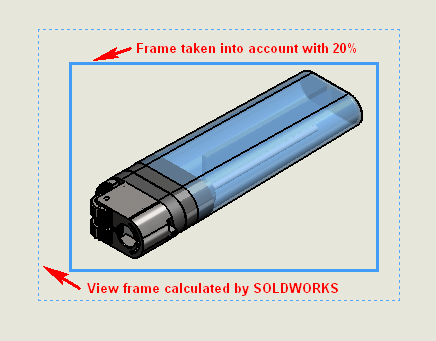
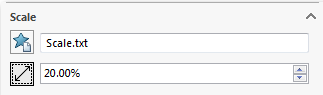
In some cases, the " Bounding Box " around the view calculated by SOLIDWORKS is a bit too large, which causes AssemblyBoard to apply a smaller scale. In such cases, you can specify an “Allowed View Scale Increase Factor” to obtain a more appropriate scale. This allows you to switch, for example, to a 5:1 scale instead of the 4:1 scale initially used. Obviously, if I’ve only defined a range from 1:1 to 5:1 in the scale file, the choices will be quite limited!
 Scales are not chosen at random, which is why it's important to define your scale file carefully.
Example: Set to 20%.