
Update
Since version 2026, myCADtools allows you to manage the different versions available online.
It is now possible to switch from one version to another, update the tool or go back, all without IT intervention or the need for admin rights.
- Notification and automatic updates
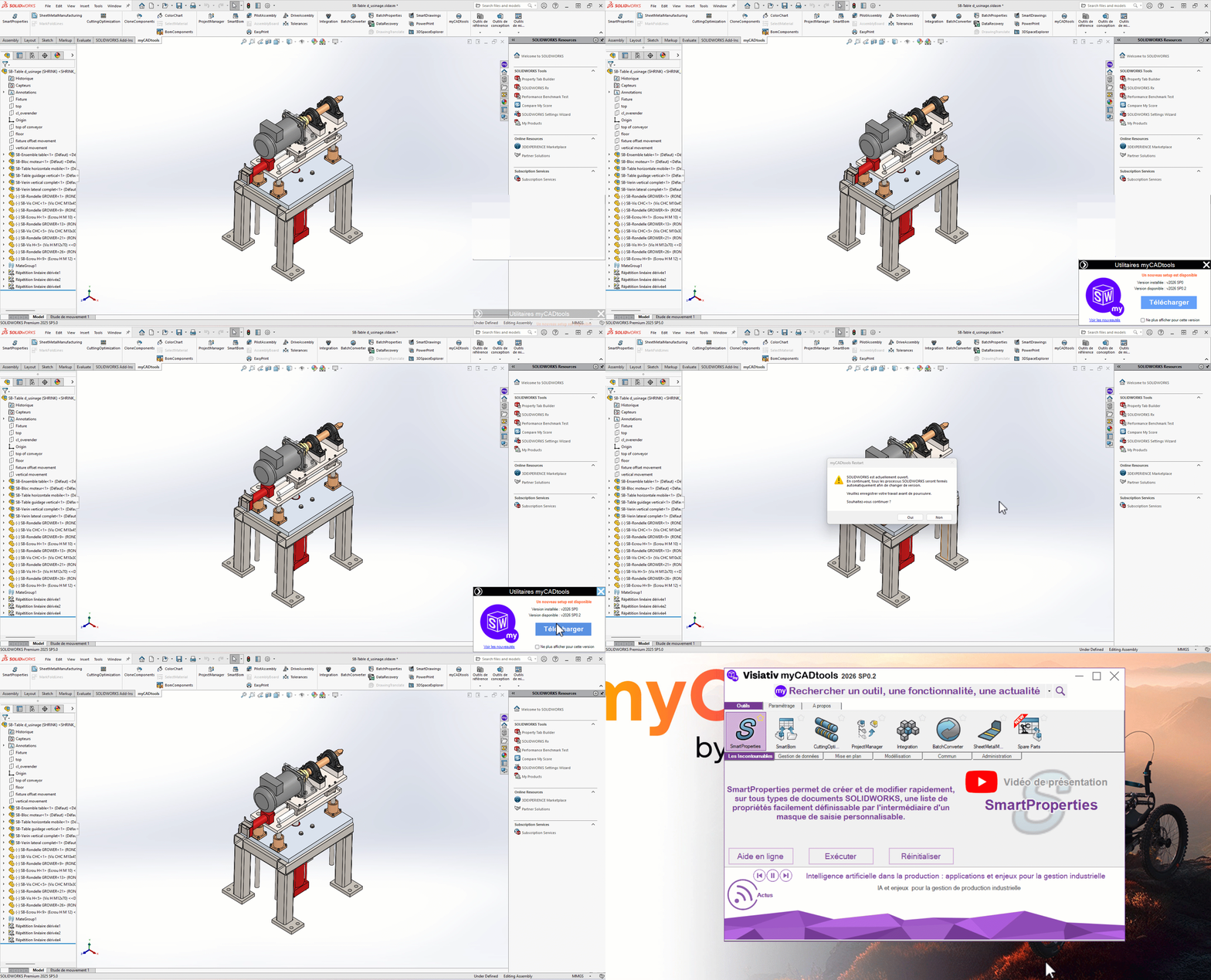
When a new version of myCADtools is released, the application automatically displays a pop-up window indicating the availability of the update.
- The user is notified as soon as myCADtools is launched if a more recent version is available.
- He can launch the update directly from this pop-up with a single click.
- myCADtools automatically closes, installs and restarts in the new version.
- No administrator rights are required to perform this operation.
- Navigation between available versions
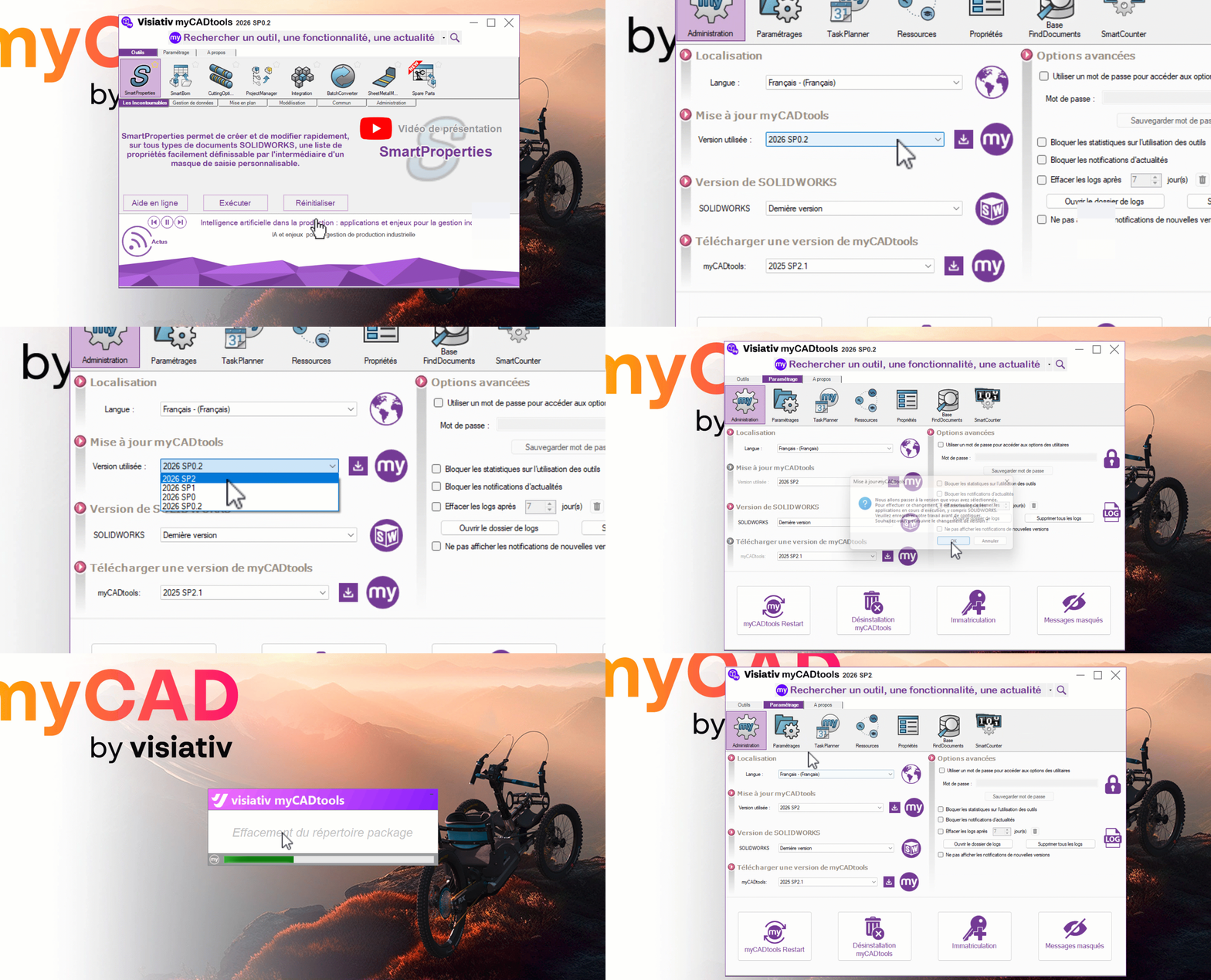
Apart from an automatic update, the user can access the list of all available versions from the myCADtools interface and freely choose which version to use.
- Access to version history from application settings.
- Ability to go back to an earlier version without manual reinstallation.
- Possibility of upgrading to a more recent version if it has not yet been applied.
- The version change applies immediately after application restart.
- Centralized deployment via shared settings (coming with version 2026 SP2)
For multi-user environments (corporate networks, shared workstations), a myCADtools administrator can force all users using the same shared setup to use a specific version.
- The administrator sets the target version from the shared settings console.
- All users connected to this shared setup automatically receive and install the configured version.
- Ensures version consistency across the entire fleet in multi-site environments.
- No manual intervention is required on a station-by-station basis.
- Beta tester program (Pre-Release)
It is also possible to activate a beta mode for certain volunteer users. This mode gives access to versions under development or validation.
- Users registered in the beta program receive new versions before they are officially released.
- Allows you to validate the expected improvements in a real business context before global deployment.
- You can switch from beta to standard mode at any time.
Frequently asked questions
Do I need Windows administrator rights to update myCADtools?
No. Since version 2026, myCADtools can be installed and updated without requiring administrator rights on the workstation. Users can carry out all version management operations completely independently.
What happens if a user is on a different version from the others?
Files and settings remain compatible between similar versions. However, to guarantee a consistent experience and avoid unexpected behavior, it is recommended that all users on the same site use the same version. Centralized deployment via shared parameterization is the solution to this need.
Can I go back after an update?
Yes, the version history is accessible from within the application, allowing you to go back to any previous version available, without having to go through a complete reinstallation or the IT department.
Are data and settings preserved during a version change?
Yes, user settings and myCADtools contexts are not affected by a version change. Only the application engine is updated.