
Resolving Excel Freezes When Creating Files on an Unapproved Network
1. Symptom
When opening an Excel file generated by the SmartBOM Connector from a network location, the following dialog box appears and prevents the document customization from loading:
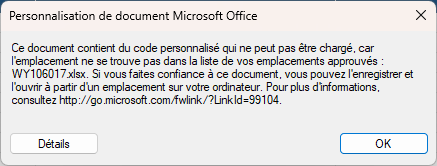
The message reads:
"This document contains custom code that cannot be loaded because the location is not on your list of trusted locations. If you trust this document, you can save it and open it from a location on your computer."
The file opens anyway, but without the ribbon or PilotAssembly features.
2. Cause
The tool relies on a document-level customization (document-level add-in, VSTO technology) embedded in the Excel workbook. For security reasons, Microsoft Office only allows this type of code to be loaded if the file is opened from:
- a local disk on the machine, or
- a network location explicitly designated as an "approved location" in Excel.
By default, no network locations are approved. This is why a block message appears every time a file is created or opened directly on a server, network share, or mapped drive that has not been added to this list.
3. Recommended solution: Declare the network location as an approved location
This solution allows you to open files directly from the network without any restrictions, on an ongoing basis.
3.1 On each user workstation
- Open Excel, then go to File > Options.
- Select "Privacy Management Center, then click "Privacy Management Center Settings…"
- In the left pane, select Approved Locations.
- Check the box “ Allow approved sites on my network ".
- Click "Add a New Location...," then enter the network path (UNC path, e.g., \\server\folder; this is preferred over a mapped drive).
- Check " Subfolders in this location are also approved "if the files can be located in subfolders."
- Click OK to confirm, then restart Excel.
A UNC path (\\server\share) is more reliable than a mapped drive (Z:\) because the mapping may differ from one computer to another, which can cause the approved location to not work on certain machines.
3.2 Centralized Deployment (recommended for multiple workstations)
If multiple users are affected, the system administrator can deploy this approved location using an Office Group Policy Object (GPO), based on the Office Administration Templates (ADMX):
- Enable the " Allow approved sites on the network ".
- Set up a " Approved location " along with the network path.
This eliminates the need to manually replicate the configuration on each workstation and ensures consistent enforcement of the security policy.