
This feature is made possible by using the SmartBom tool in combination with the BatchConverter tool.
It is not possible to simply add the quantity to be produced to the part drawings, especially if they are used in several different projects.
With SmartBom,you can generate PDFs of a project's drawings from the bill of materials by adding a note from the bill of materials and placing it wherever you want.
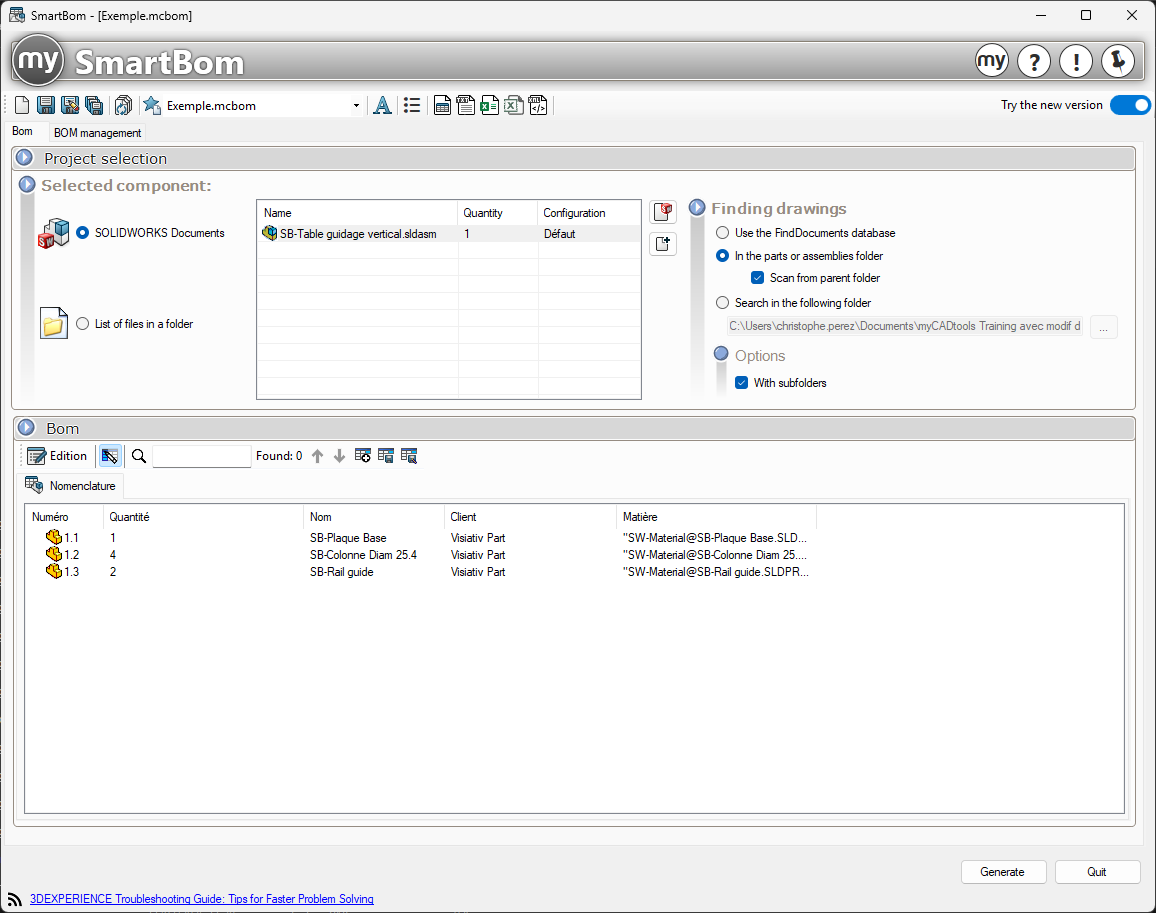
Step 1:
Launch the SmartBom tool.
Select the assembly to analyze.
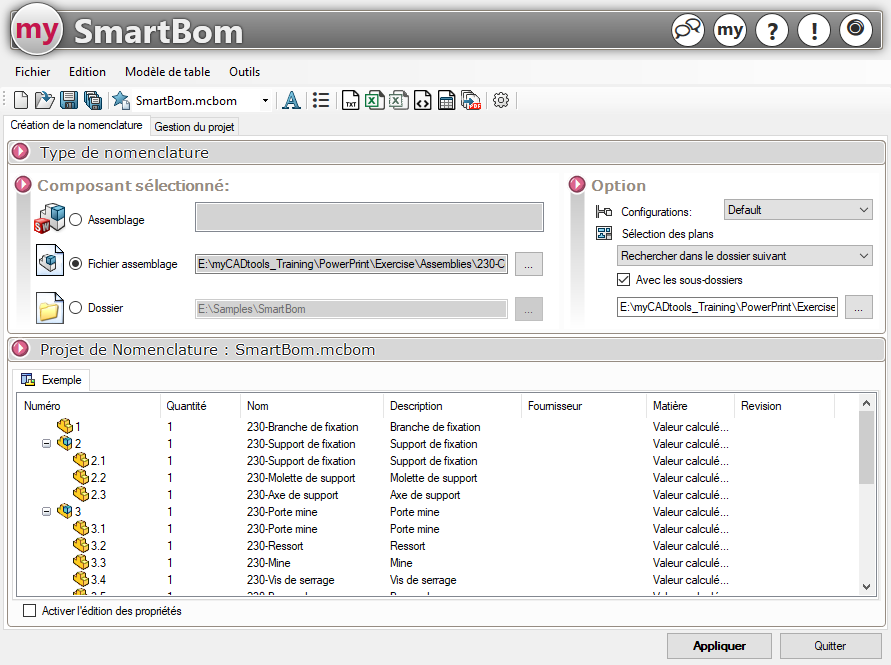
Then define the search options for the drawings (see "Selected Component").
Step 2:
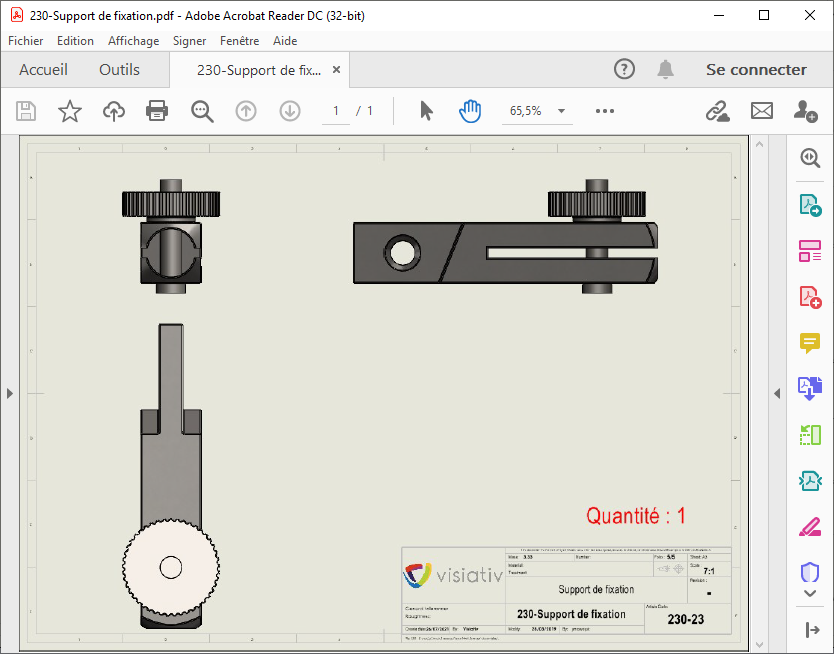
In the export options, specify the note that will be retrieved from a column in the bill of materials. You can also set the font, color, and position of this note on the drawing.
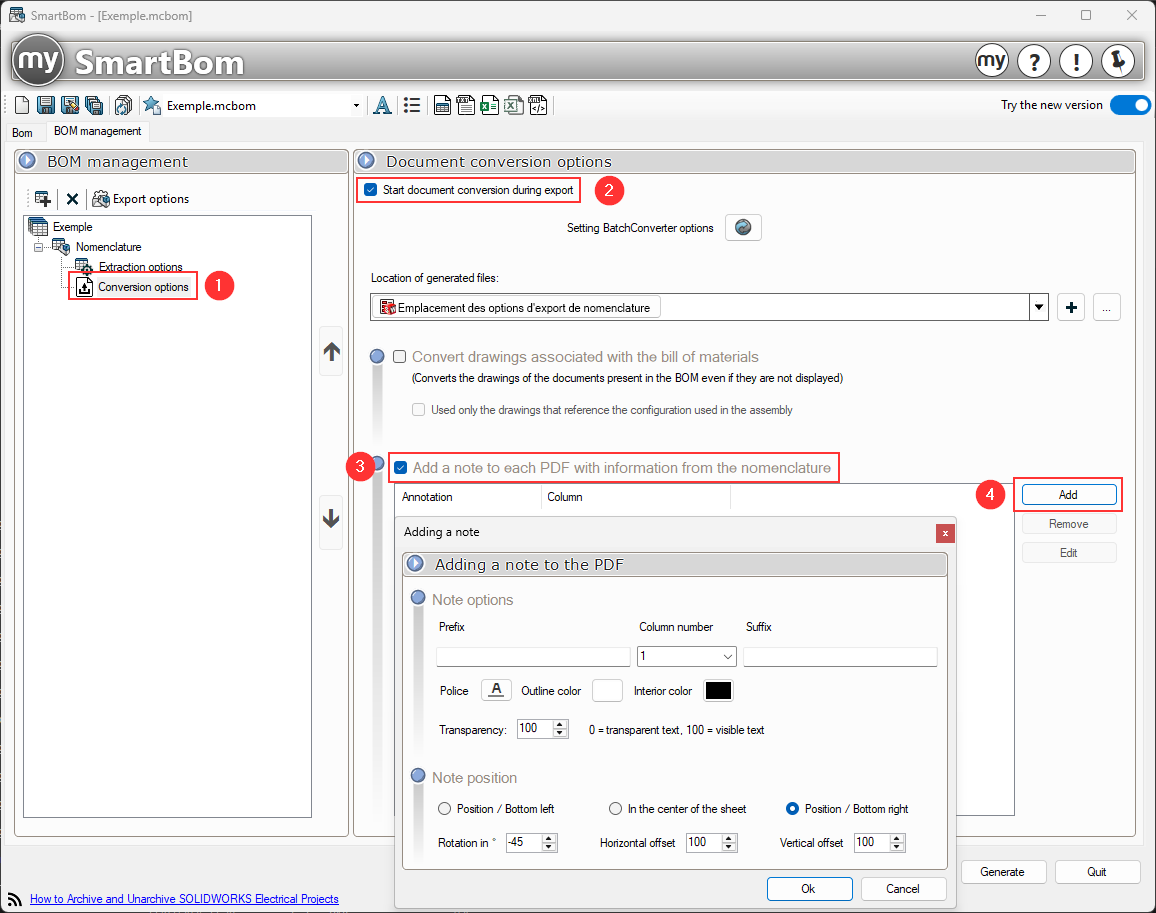
You can add multiple notes and adjust the font, color, and position of each one on the drawing.
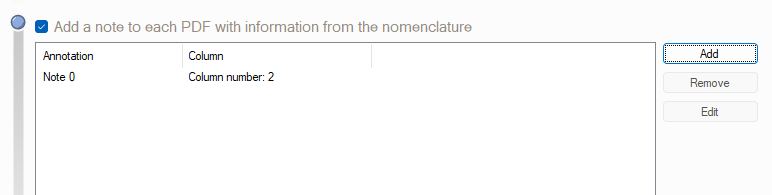
This note will not change the drawing; it is simply applied to the PDF file.
Step 3:
Next, click the icon to export to PDF format, then select an export folder (see "Export PDF ").

That is when the BatchConverter tool is launched, and each drawing—for the components listed in the bill of materials generated by SmartBom—will be converted.
Step 4:
Here are the results for the "230-Mounting Bracket" component.
This action can also be scheduled using the TaskPlanner task scheduler.