
Excel
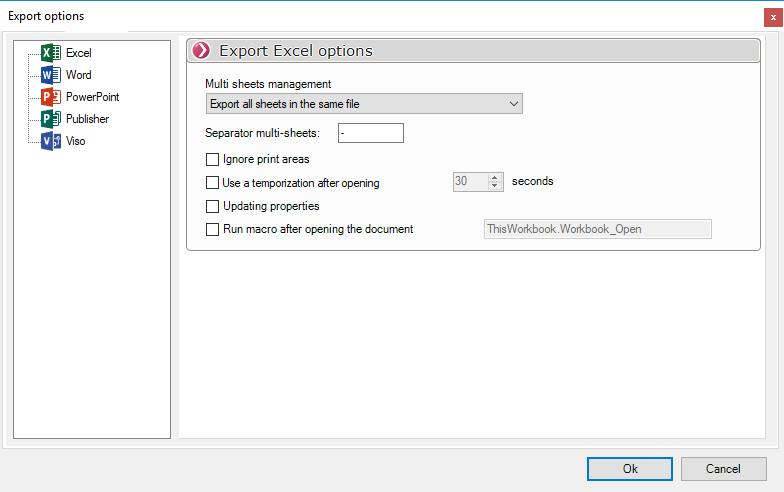
If you select the "Microsoft Office" option, all documents in Excel format will be converted to PDF format.
This applies to the following file extensions: '.xl', '.xlsx', '.xlsm', '.xlsb', '.xlam', '.xltx', '.xltm', '.xls', '.xla', '.xlt', '.xlm', '.xlw', '.htm', '.html', '.mht', '.mhtml', '.xml', '.odc', '.uxdc', '.ods', '.csv'
You can specify the export mode for the worksheets in the workbook:
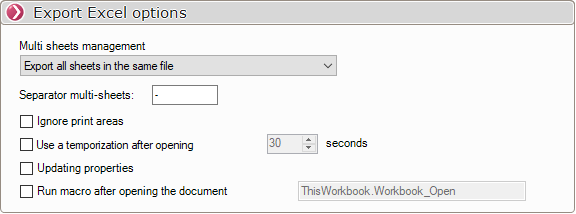
-When an Excel file contains multiple sheets, you can specify how each sheet should be exported. This is done using the Multiple Sheets Manager.
-When the "Export all sheets to separate files" option is checked, the DocPublication utility automatically manages the name of each file by adding the sheet number to the file name (e.g., Name-01, Name-02, Name-03, etc.).
-The "Multi-sheet Separator" option lets you choose the separator to be inserted into the file names.
-If print areas have been defined in the sheets, they can be ignored when exporting to PDF.
-The "Use a delay after opening" option allows you to specify the number of seconds DocPublication will wait after opening the file to ensure that the file is fully loaded before starting the PDF export.
-Update Properties: This option updates the attribute values in the Word file based on the data map.
-Run a macro after opening the document: This option allows you to automatically run a macro after the document is opened; for example, this can be used to update an Excel file before conversion.