Subscriptions and automatic notifications
Visiativ myCADplatform enables users to subscribe to changes in a folder or document, so that they are automatically notified by email when new files are added or modified.
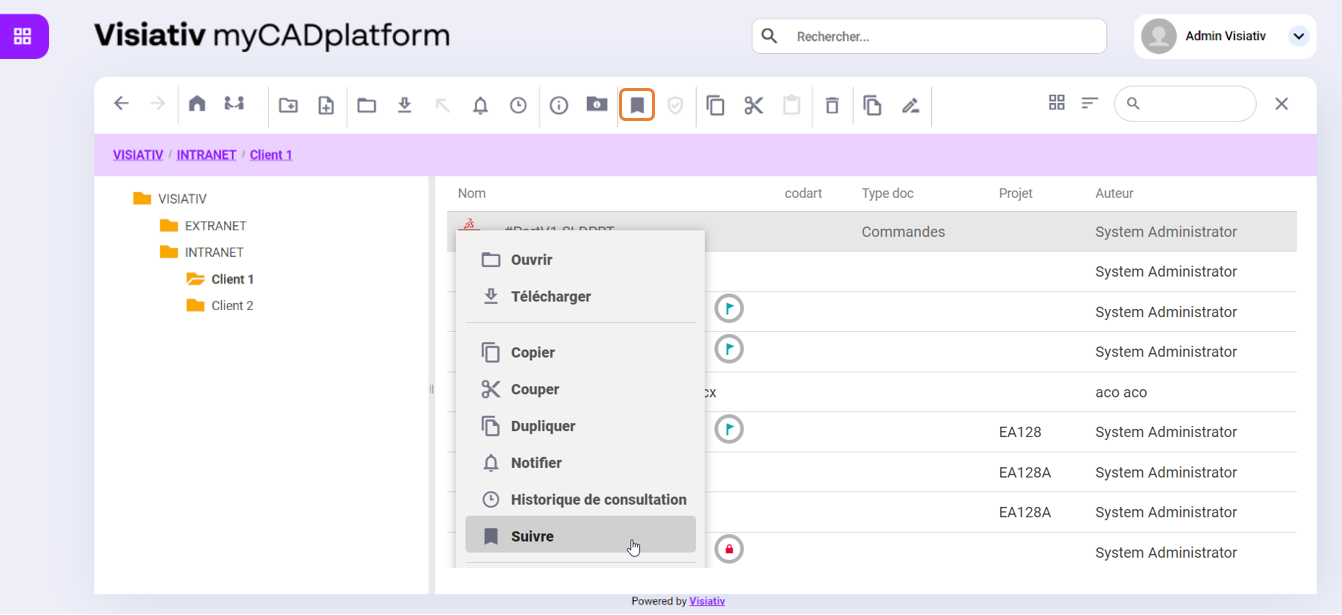
To subscribe to a folder or document, select the "Subscribe" button.Follow "Right-click to open the drop-down menu.
A "Flag" symbol appears after the folder or document name:
To stop tracking a folder or a document, select the " " button.Do not follow The "Flag" symbol disappears. The "Flag" symbol disappears.
You can get an overview of all your subscriptions by clicking on the "My follow-ups" button.  in the top menu bar.
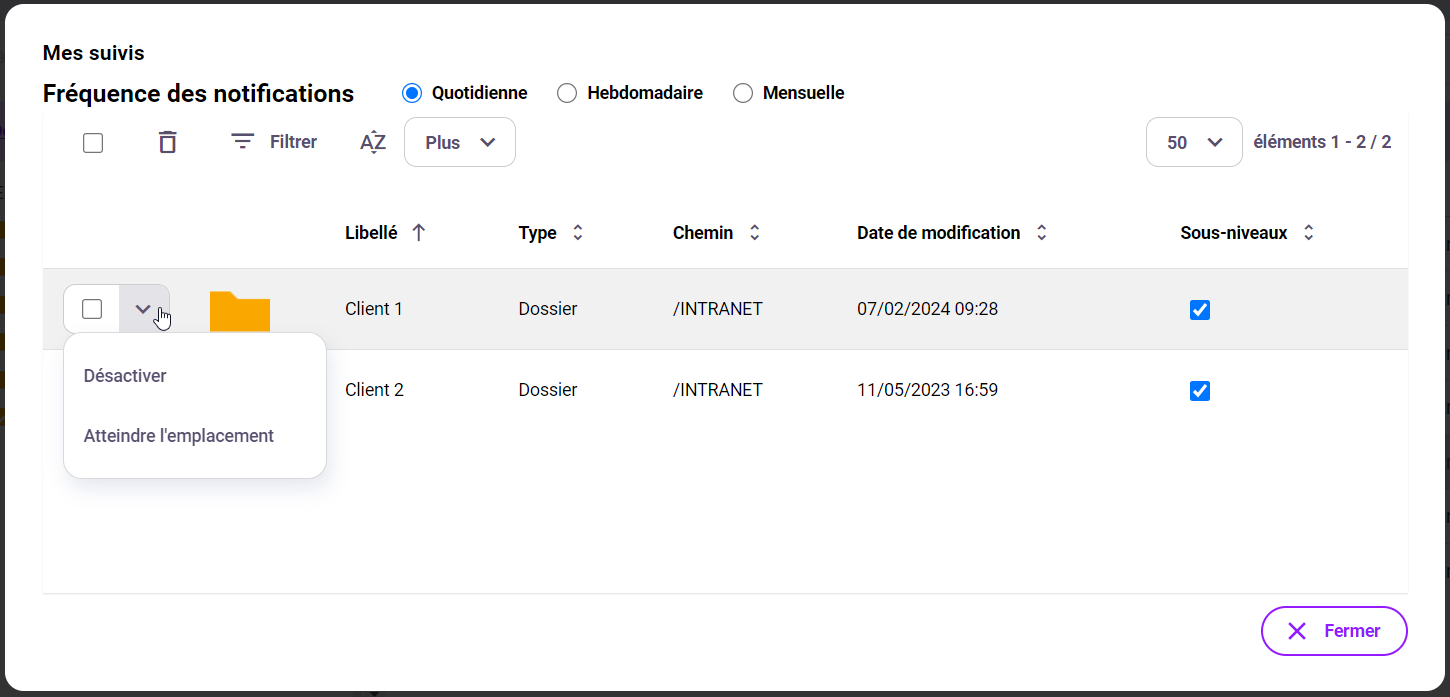
From this view you can :
- Unsubscribe from a file or folder using the " " button.Disable »
- For folder subscriptions, select whether you want sub-folders to be ignored. By default, subscriptions are recurring for all sub-folders.
- Choose the frequency of e-mail notifications: Daily, Weekly or Monthly
Note that when you subscribe to a folder, the "Flag" symbol is only added to the folder. Files and sub-folders within the folder do not inherit the symbol.
Each time a new document is added to a folder to which you have subscribed, the information is aggregated into your periodic notification.
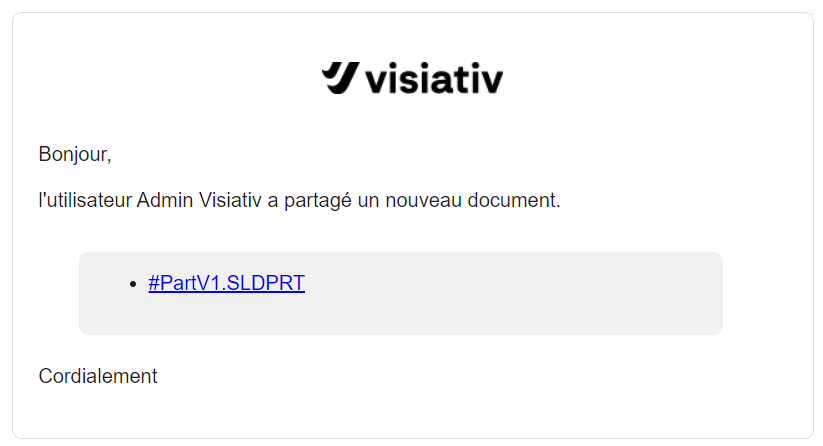
Subscription notifications are sent to you by email at the chosen frequency (Daily by default). All modifications and file additions during this period are summarized.
Click on the link to download the document directly.
Important :
When an administrator assigns read or write rights to a user, the user is automatically subscribed to the folder. The user can remove this subscription if he or she wishes (using "My Follow-ups").
Manual notifications
This feature can be used to notify one or more users that a new document is available on the platform.
To notify users, after selecting your documents, click on the "Notify" button.  in the top menu bar or in the drop-down menu using the right mouse button :
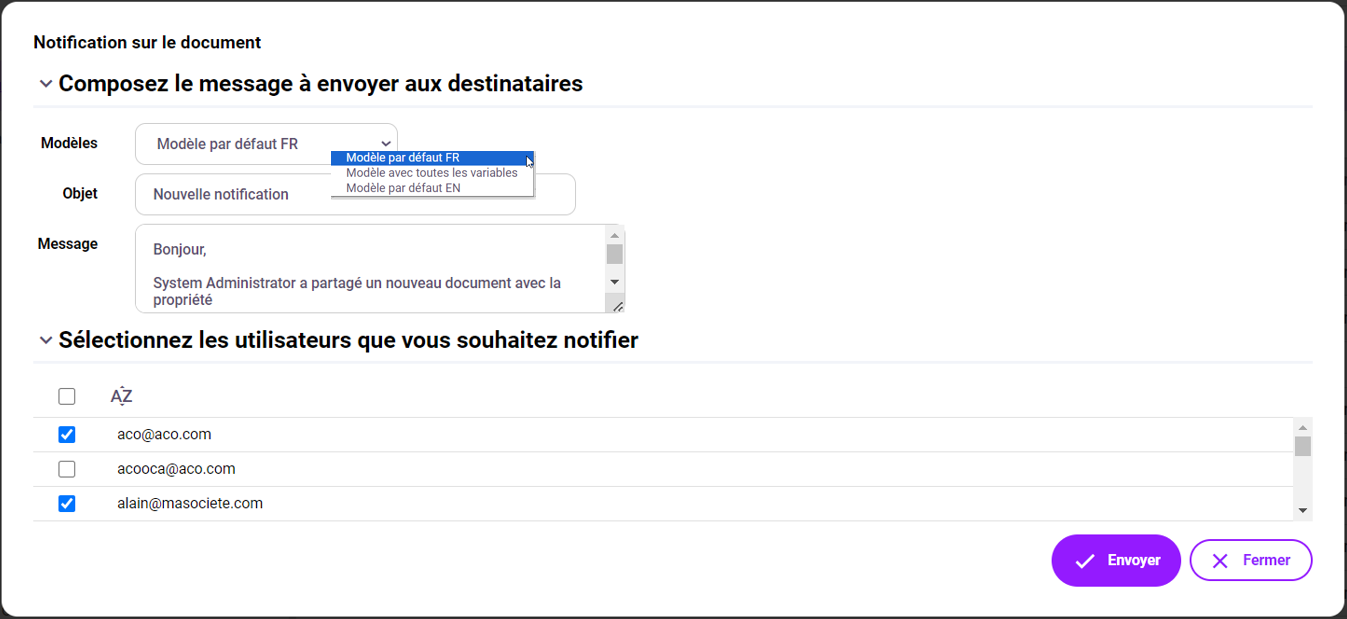
You can modify the subject and content of the message before sending it.
The menu allows you to choose a notification template. Templates are created by the administrator (see section "Notification templates ").
The menu allows you to select the users you wish to notify. Only users who have read or write rights to the file are listed in the menu.
You can sort users alphabetically.
All users selected from the list will receive a notification email with the subject and the chosen message. They will be invited to click on a link to directly access the documents targeted by the notification.