
Advanced Version
This mode will allow you to create a table and customize the selected items to be copied with personalized information.
In the table, you can define the following for each file:
- Variables from the data map
- Links
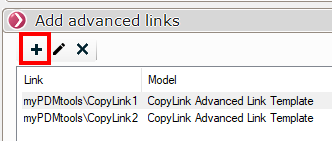
To do this, simply add an advanced link:
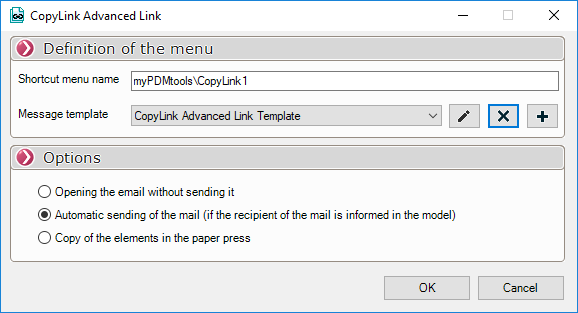
Select the template or create one with the buttons  .

In this mode, CopyLink uses the PDMmessage tool,which is also available in the tasks
Select one of the sending options. For this example, I'll leave the "Open the email without sending it" option selected.
Next, in the Windows Explorer context menu, you'll find the new menu that you can open on a list of files.
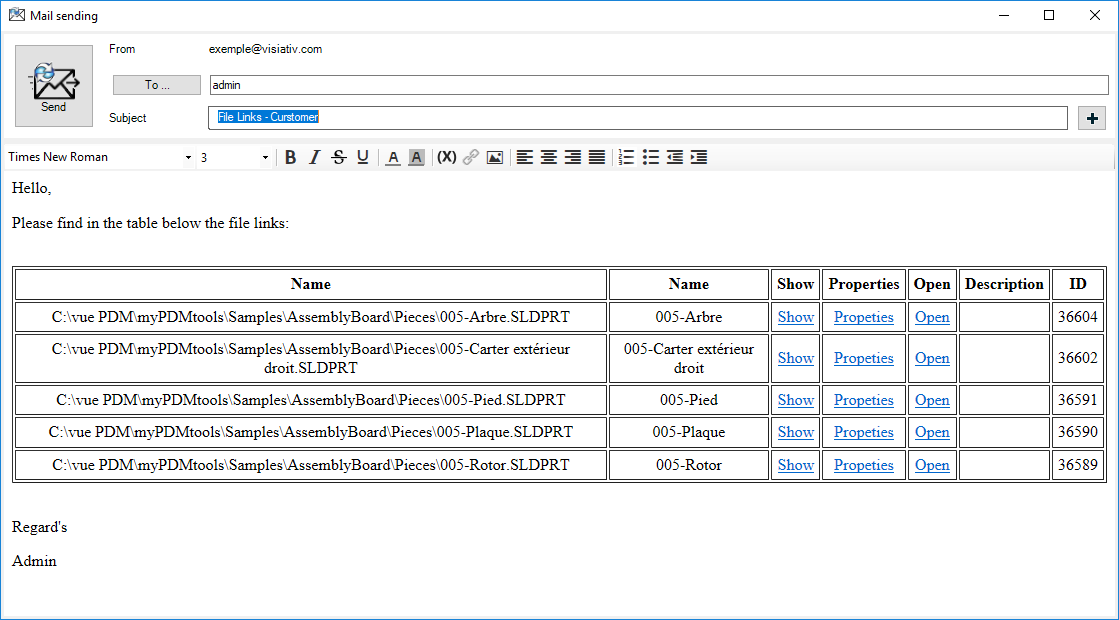
- Result of opening the email without sending it.
This email includes all the information defined in the template: the recipient(s), the table listing the selected files. The subject of the mail can still be modified before sending the message by clicking on  .
- Automatic email sending.
In this case, the content of the email above will be sent to all recipients, provided they have been listed in the template used.
- Copy the items to the clipboard.
For the example using CopyLink, you can use the clipboard or paste the content into an email, a Word document, or wherever else you need it. The clipboard will contain the Introduction, Table, and Conclusion sections (but not the message subject).